

All scenarios/ Freelancer
A monthly client report that shows progress, not only errors
You look after a client's site every month. Every report looks the same: a list of errors, some of which you have already fixed and some of which came back. The client cannot see what they are paying for. You need a report that shows movement: where the site was, where it is now and what comes next.
- Who
- An SEO freelancer on a monthly retainer
- Clients
- Several sites, each with its own report
- What hurts
- The report shows errors, not the work
- What's needed
- The trend, the fixes and the new problems in one document
Steps in Molfar
Schedule a monthly crawl
In the Schedule tab, a crawl runs on its own: once, every day, every week or every month on the day and at the time you pick. The calendar shows past and planned runs, and the list beside it holds every schedule with its next run.
Schedule — docs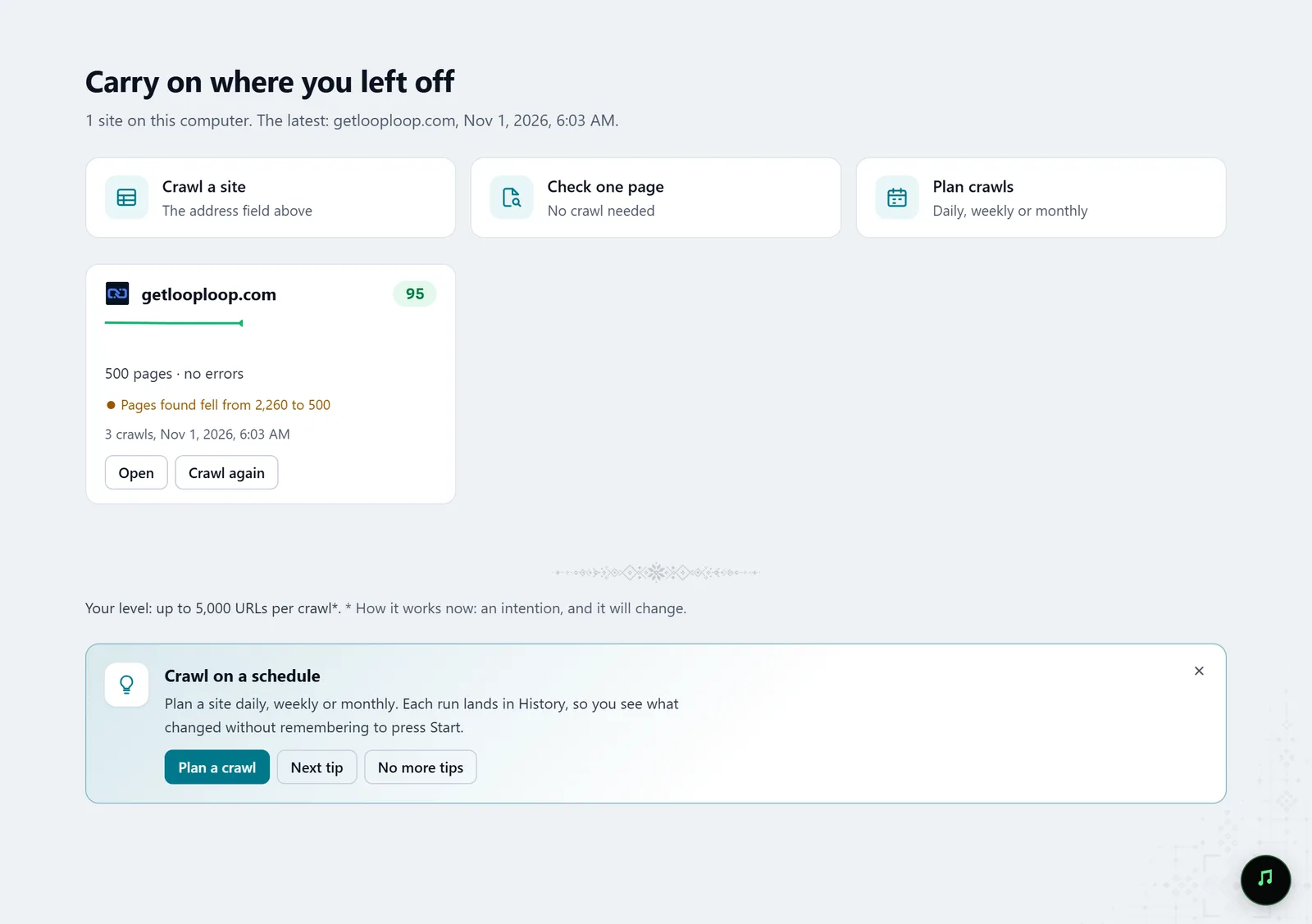
In the screenshot: Starting a crawl Make sure the run is not lost
Planned crawls run while Molfar is open or in the tray. In Settings › Planned crawls, decide what happens to a run that came due while the computer was off: run it as soon as the computer is back, skip it, or skip it and remind you. Notifications tell you when a run starts, finishes or is missed.
Settings · Planned crawls — docs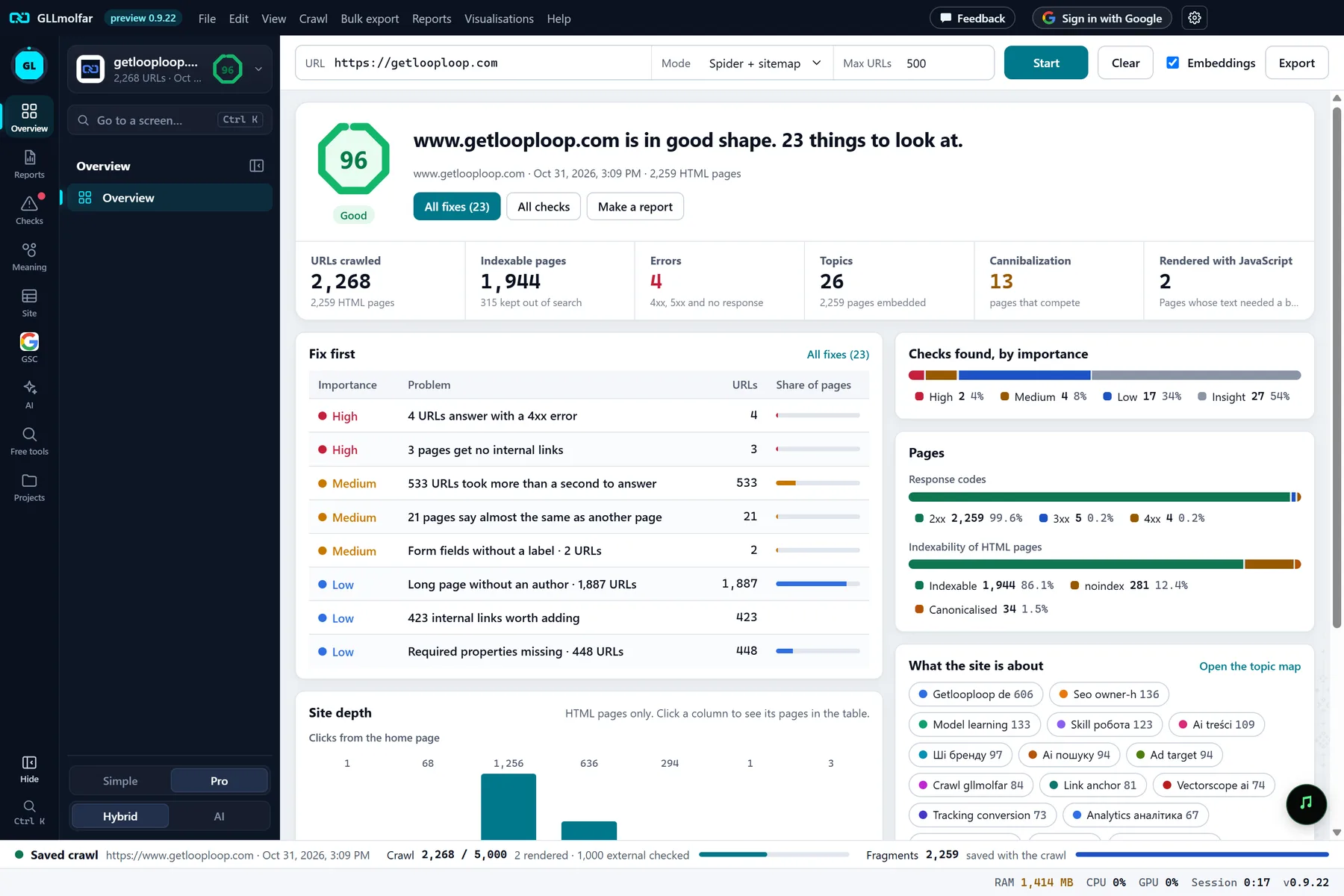
In the screenshot: Overview after a crawl Show the trend in History
History keeps every saved crawl of the site and shows a trend of one number: health, URLs, errors, non-indexable pages, problems to fix or topics. On the right, one line says better, worse or no change, from the first crawl to the last.
History · Trend — docs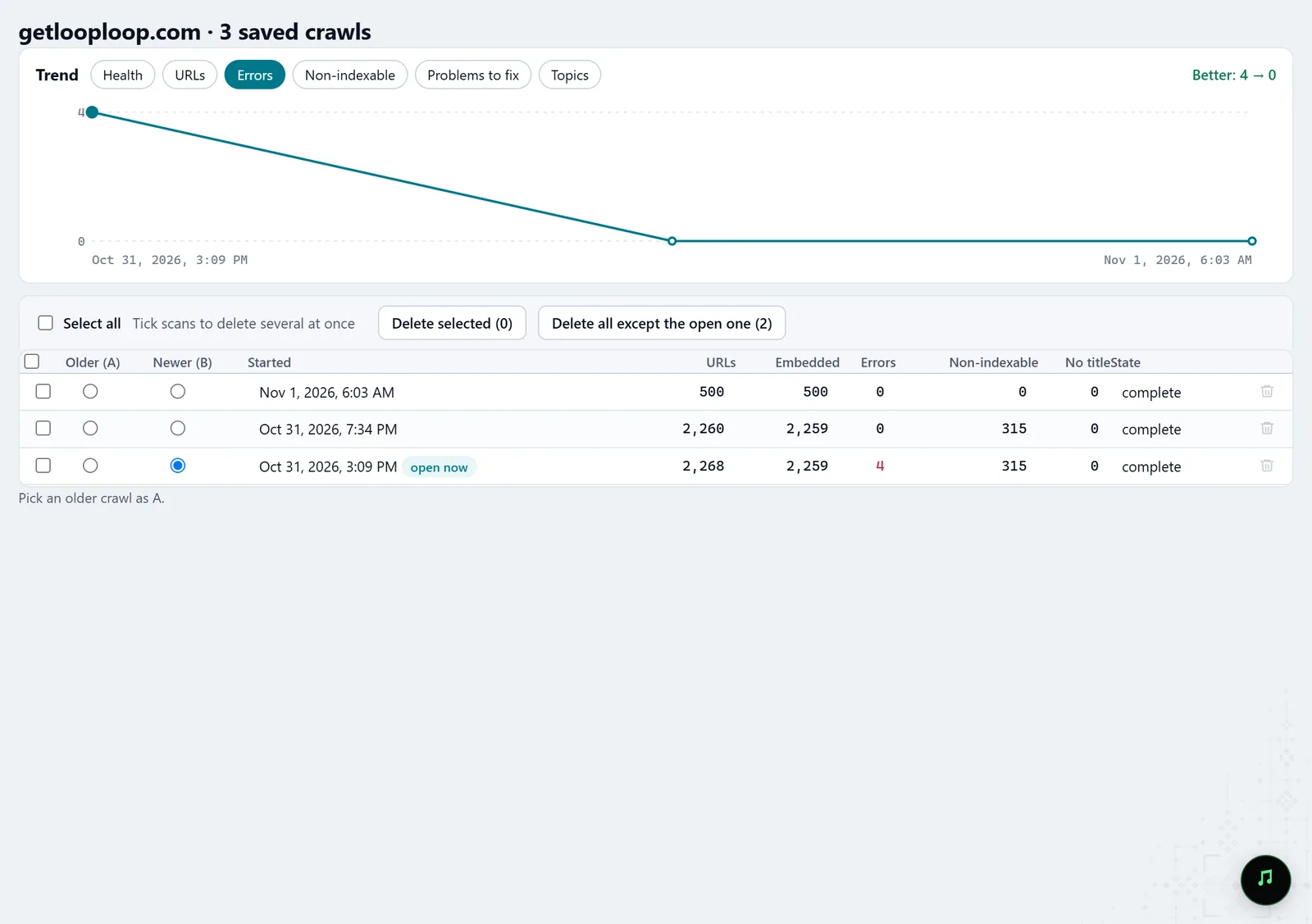
In the screenshot: Crawl history Compare this month with the last
Pick the older crawl as A and the newer one as B. You see which pages appeared, went missing or changed, and which checks were fixed and which are new. A page missing from a crawl is not necessarily deleted: Molfar asks you to check which ones really return 404 or 410.
History · Compare A and B — docsIn the screenshot: Crawl history Add the quick wins
The Quick wins report shows the searches where a small change could bring more clicks. It reads Search Console and says so when it is not connected.
Quick wins report — docs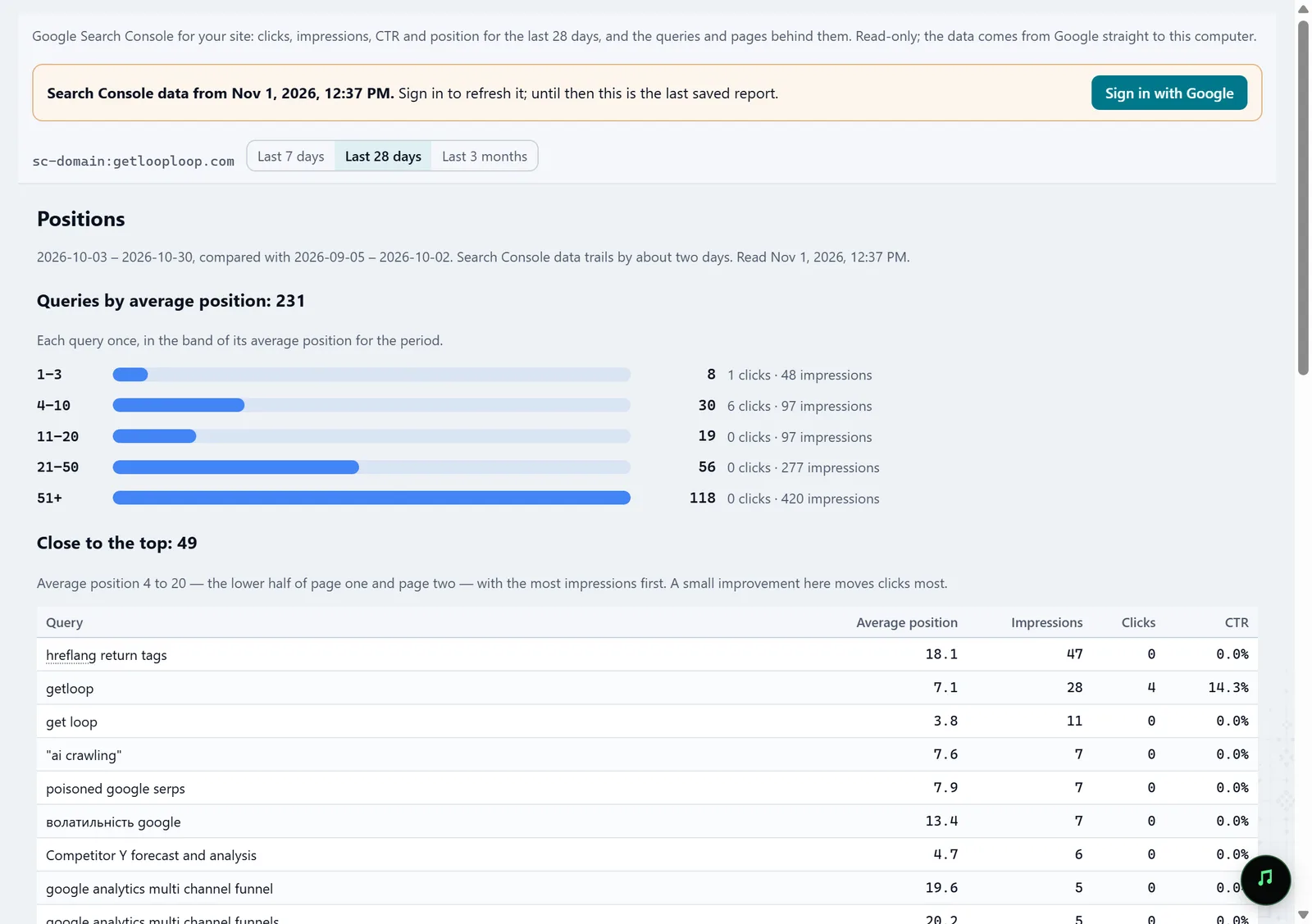
In the screenshot: Search Console Save the Monthly report
The Monthly report answers three questions: what changed this month, what was done and what comes next. Like every report, it saves as HTML or PDF, ready to send to the client.
Reports · Monthly report — docs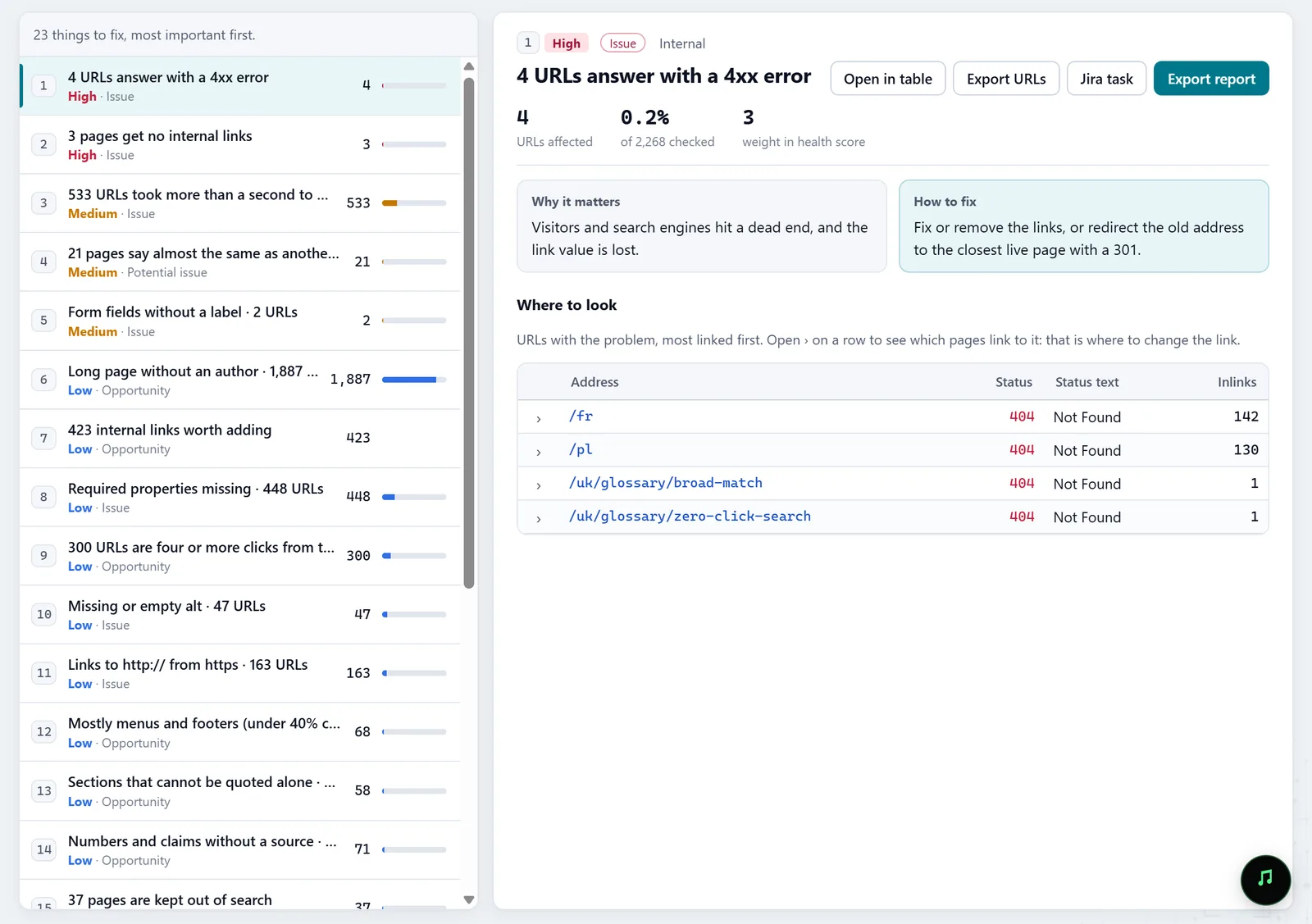
In the screenshot: Fix list
What you get
A trend
One number across every crawl, with a better, worse or no change verdict.
Fixed and new
The checks that cleared between two crawls and the ones that appeared.
A client report
The Monthly report as HTML or PDF: what changed, what was done, what comes next.
Good to know
- Planned crawls do not run while Molfar is closed; keep the app in the tray for them to run.
- The comparison is exact on the pages both crawls reached; if the newer crawl stopped at its limit, some pages were simply not reached.
- Quick wins needs Search Console connected.
Questions
- Can I do this for several clients?
- Yes: each site has its own schedule and its own crawl history, and the Projects tab shows every site together.
- Does the comparison include checks based on embeddings?
- No: checks that need topics, embeddings or the sitemap scan are left out of the comparison, because older crawls may not have them.
- What if the site has several languages?
- The Monthly report always covers every language of the site.