

Schedule
Describes GLLmolfar 0.9.22current release 0.9.23 · checked 1 Nov 2026
Crawls that run on their own, once or on repeat. The calendar shows the month's past runs and the planned ones; the list beside it holds every schedule with its next run.
- Where
- Projects › Schedule in the rail
- Mode
- Simple and Pro
- Built from
- The schedules and the log of their runs
- Changes
- When a schedule is added, changed or runs
On the screen
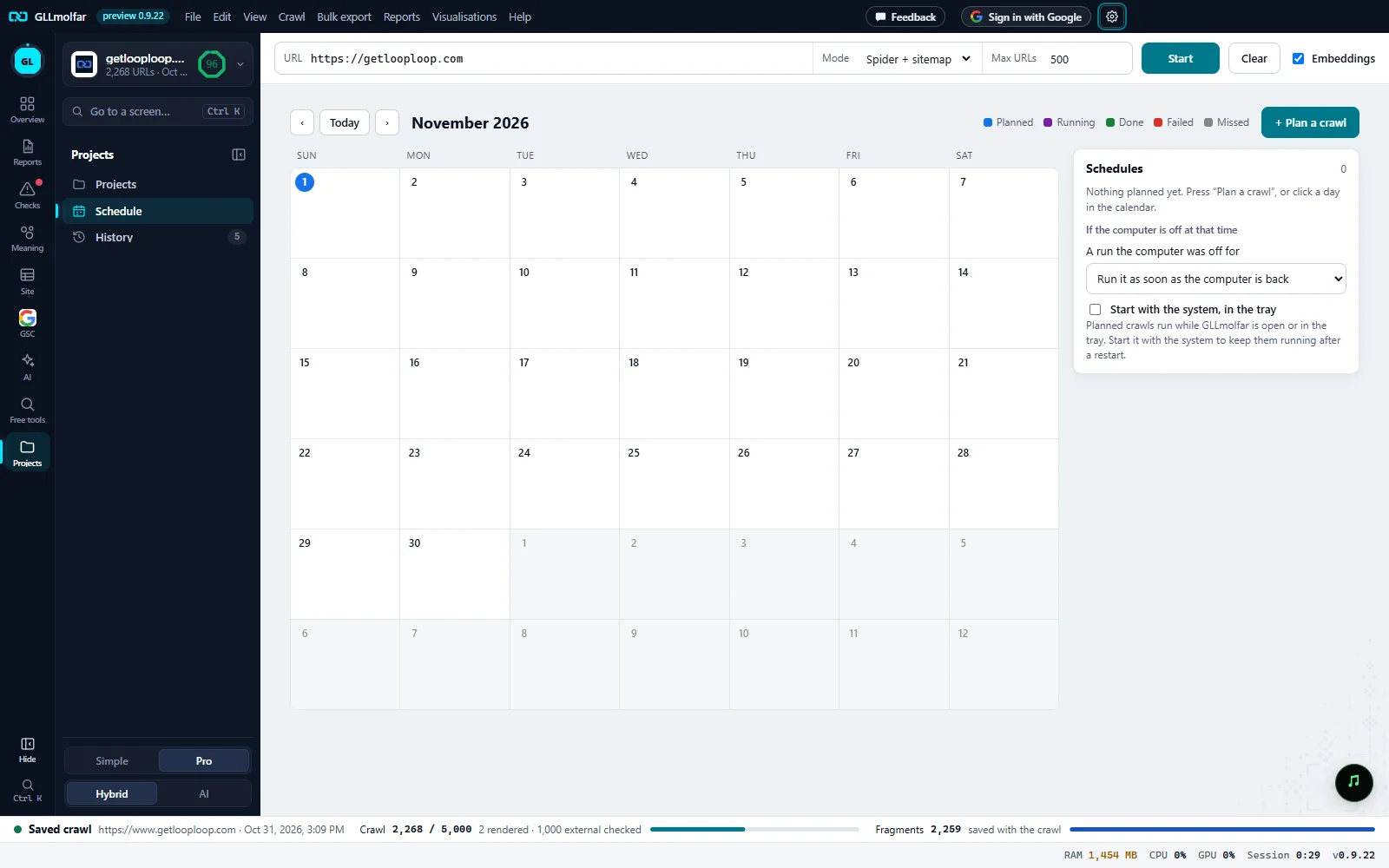
Month. ‹ and › move a month; Today comes back to this month.
Legend. Planned, Running, Done, Failed and Missed.
Plan a crawl. Opens the dialog that plans a crawl.
Calendar. Each day shows up to four runs, with the time and the site; more show as +N. A run opens its details; an empty spot of a day plans a crawl for that day.
Schedules. Every schedule with its repeat, its page count and its next run. With none yet, as here, it says how to plan one.
If the computer is off at that time. What to do with a run the computer was off for, and Start with the system, in the tray.
Schedules
The panel shows the number of schedules, Running now: {site} while a planned crawl runs, and Waiting: N with the sites in line. Each schedule shows:
| Part | What it shows or does |
|---|---|
| Site | The site's favicon and name. |
| Repeat | Once: {date}, {time}, Every day at {time}, Every week: {days} at {time} or Every month on day {day} at {time}, with up to N pages. |
| Next run | next: {date}, or no more runs, or switched off. |
| On | Switches the schedule on or off without deleting it. |
| ▶ | Run now. While another crawl runs: It will start when the crawl in progress finishes. |
| Edit | Opens Change the planned crawl. |
| ✕ | Deletes the schedule after Delete the schedule? — Crawls it already made stay in History. |
Under the list: A run the computer was off for — Run it as soon as the computer is back, Skip it or Skip it and remind me — and Start with the system, in the tray. These are the same settings as Settings › Planned crawls. Clear past runs from the calendar removes the log of past runs.
Plan a crawl
| Field | What it takes |
|---|---|
| Sites | One address per line. Several sites at the same time run one after another. When a schedule is changed, the field is Site, one address. |
| Repeat | Once, Every day, Every week or Every month. |
| Date / Starting | The day of the run, or the first day of a repeat. A new plan starts tomorrow. |
| Time | The time of the run; a new plan starts at 02:00. |
| Days of the week | Shown for Every week: the days it runs. |
| Max URLs | Pages per run; starts at Default max URLs from Settings. |
| Mode | Spider + sitemap, Spider only or Sitemap only; starts at Default mode from Settings. |
One run
A run in the calendar opens Planned crawl: the site and its status, the date (started by hand for a run started with Run now), the repeat, and for a finished run N pages · N errors · N non-indexable. Its buttons are Open the crawl, Run now, Edit, Delete and Close.
| Status | Meaning |
|---|---|
| Planned | Due later. |
| Waiting | Due, and waiting for the crawl in progress to finish. |
| Running | The crawl is running. |
| Done | The crawl finished. |
| Stopped | The crawl was stopped. |
| Failed | The crawl did not start; the reason is shown. |
| Missed | The computer or the app was off at that time. |
| Skipped | The run was skipped. |
States and messages
Nothing planned yet. Press “Plan a crawl”, or click a day in the calendar.
No schedule exists.
Planned crawl of {site} started, up to N pages
A planned crawl starts in the window like one started by hand.
Planned crawls run while GLLmolfar is open or in the tray. Start it with the system to keep them running after a restart.
Shown while Start with the system, in the tray is off.
{site}: the planned crawl waits for the crawl in progress to finish
A run came due during another crawl.
{site}: the run of {time} was missed — the computer or the app was off
What happens next depends on A run the computer was off for.
Closing the window quits GLLmolfar, so planned crawls cannot run. Turn on Settings › “The close button keeps GLLmolfar running in the tray”.
See Settings › General.
A lock means it is not open on this account.
The tab then says what opens it, in place of the calendar.