

The app at a glance
Describes GLLmolfar 0.9.22current release 0.9.23 · checked 1 Nov 2026
One window. A menu bar along the top, a toolbar that starts a crawl, a rail on the left — a strip of sections and a panel with the open section's views — the open view in the middle, and a status bar at the bottom that says what the app is doing.
- Where
- The main window
- Mode
- Simple and Pro
- Built from
- The open crawl
- Changes
- With every crawl you start or open
On the screen
The window in Simple mode with a saved crawl open on the Overview.
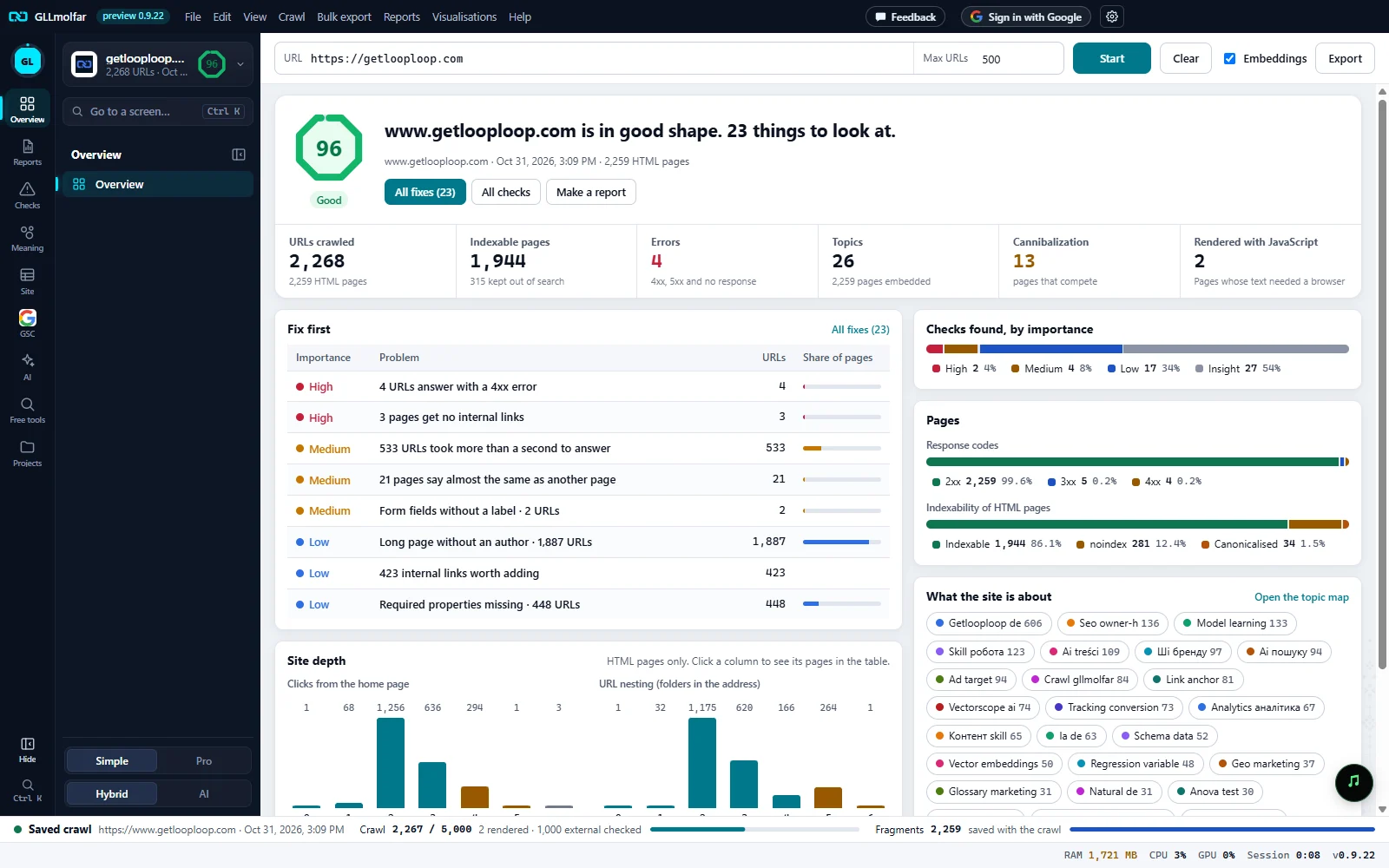
Menu bar. File, Edit, View, Crawl, Bulk export, Reports, Visualisations and Help, after the app's name and version. On the right: Feedback, Sign in with Google or the signed-in account, and the gear that opens Settings.
Toolbar. URL and Max URLs (and Mode in Pro), Start, Clear, the Embeddings box for this crawl, and Export for the table on screen.
Section strip. Overview, Reports, Checks, Meaning, Site, GSC, AI, Free tools and Projects. Pressing one opens its views in the panel beside it.
Panel. The open crawl at the top, Go to a screen…, then the views of the open section. Here the section is Overview, with its one view.
Hide and Ctrl K. Hide folds the panel (Show brings it back; Ctrl B does both). Ctrl K opens the palette of every screen.
Simple / Pro, Hybrid / AI. Two switches at the foot of the panel: how much the app shows, and whom the checks are rated for.
Status bar. The crawl's state, the crawl counter and its bar, the fragments counter for embeddings, and under them RAM, CPU, GPU, Session time and the version.
The menu bar
| Menu | What is in it |
|---|---|
| File | New crawl, Open saved crawl…, Export this table…, Report (PDF / HTML)…, Settings…, Exit. |
| Edit | Undo, Redo, Cut, Copy, Paste, Select all, Find in table. |
| View | The main views (Overview, Internal, Issues, Fix list, Topics, Topic map, Cannibalization, Link opportunities, Semantic search, History, Projects), Columns…, Folder tree, Overview panel, Simple mode or Pro mode, zoom and Full screen. |
| Crawl | Start crawl, Pause crawl or Resume crawl, Stop crawl, Clear, Crawl a list of URLs…, Add URLs to this crawl…, Quick URL audit, Crawl configuration…, Custom extraction & search…, the Embeddings switch, Open data folder. |
| Bulk export | All internal links, All external links, Broken links (4xx, 5xx) with sources, Links that point to redirects, Images without alt, All images. |
| Reports | Crawl overview, Issues overview, Fix list, Batch fixes, Report (PDF / HTML)…, Redirects, Canonicals, Hreflang, Insecure content (http on https), SERP summary (titles, descriptions, pixels), Orphan pages, Generate XML sitemap…. |
| Visualisations | Crawl tree, Directory tree, Force-directed, Topic map, Site depth chart, About the page (selected URL), Topics, Cannibalization, Link opportunities, Semantic search. |
| Help | User guide, Keyboard shortcuts, Show tips again, Relax, GetLoopLoop website, Open data folder, Check for updates…, Connect an AI agent…, Agent skills…, Send feedback or report a bug…, About GLLmolfar. |
Items that need a crawl stay grey until one is open. User guide opens these pages. Send feedback or report a bug… can attach the app's diagnostic log to a bug report; the box Attach the diagnostic log decides.
The toolbar
| Control | What it does |
|---|---|
| URL | The address to crawl. Earlier start addresses are offered as you type. |
| Mode | Spider + sitemap, Spider only, Sitemap only, or List of URLs. Pro mode only; Simple mode uses the default mode from Settings › General. |
| Max URLs | Where the crawl stops. |
| Start | Starts the crawl. While it runs, the button reads Stop, and Pause appears beside it; a paused crawl shows Resume. |
| Add URLs | During a crawl: adds addresses to its queue. |
| Clear | Shown when nothing is crawling: empties the window for a new crawl. Saved crawls stay saved. |
| Embeddings | Whether this crawl builds embeddings for topics, cannibalization and semantic search. Its starting state comes from Settings › Embeddings. |
| Export | Exports the table on screen. |
The left rail
Two columns: a narrow strip of sections, and beside it a panel with the views of the section that is open. Pressing a section opens its panel; pressing the open section again folds the panel away and gives the view the room. Overview has one view and opens it at once.
| Section | Views in its panel |
|---|---|
| Overview | Overview |
| Reports | The eleven reports, under four headings: Technical SEO, Content and optimisation, AI visibility, Demand and progress. |
| Checks | Issues, Fix list, Batch fixes |
| Meaning | Topics, Topic map, Cannibalization, Link opportunities, Semantic search |
| Site | Internal (called All pages in Simple mode), Structure, URL audit, Heat map, Reverse prompts |
| GSC | The nine Search Console reports: Performance, Pages, Positions, Indexing, Sitemaps, Lost clicks, Cannibalization, Query clusters, Visualisation |
| AI | AI and Agent · test |
| Free tools | Vectorscope, Voicescope, Brandscope, Reviewscope and PatternScope. See Free tools. |
| Projects | Projects, Schedule and History |
| Part | What it shows or does |
|---|---|
| GL | The top of the strip opens the Overview. While a crawl runs, a ring around it fills with the crawl's progress. |
| Red dot | On Checks, when Issues has checks to count. |
| Open crawl | At the top of the panel: the site, its URL count and date, and its health score. Pressing it lists the saved crawls. |
| Go to a screen… | Opens the palette, as Ctrl K does. The last three screens opened sit under it, one click away. |
| Panel heading | The section's name, and the panel icon that folds the panel. |
| Hide / Show | At the foot of the strip: folds the panel and brings it back. Ctrl B does the same. |
| Ctrl K | Under Hide: opens the palette. |
The app remembers on this computer whether the panel is folded and which Reports headings are folded. A lock on a view means it is not open on this account; pressing it says what opens it.
Go to a screen: Ctrl K
Every screen by its name, in one list. Type part of a name or of a section, move with the arrows, open with Enter; Escape closes it. A report or a Search Console page opens exactly as its button in the panel does, and a locked view stays locked.
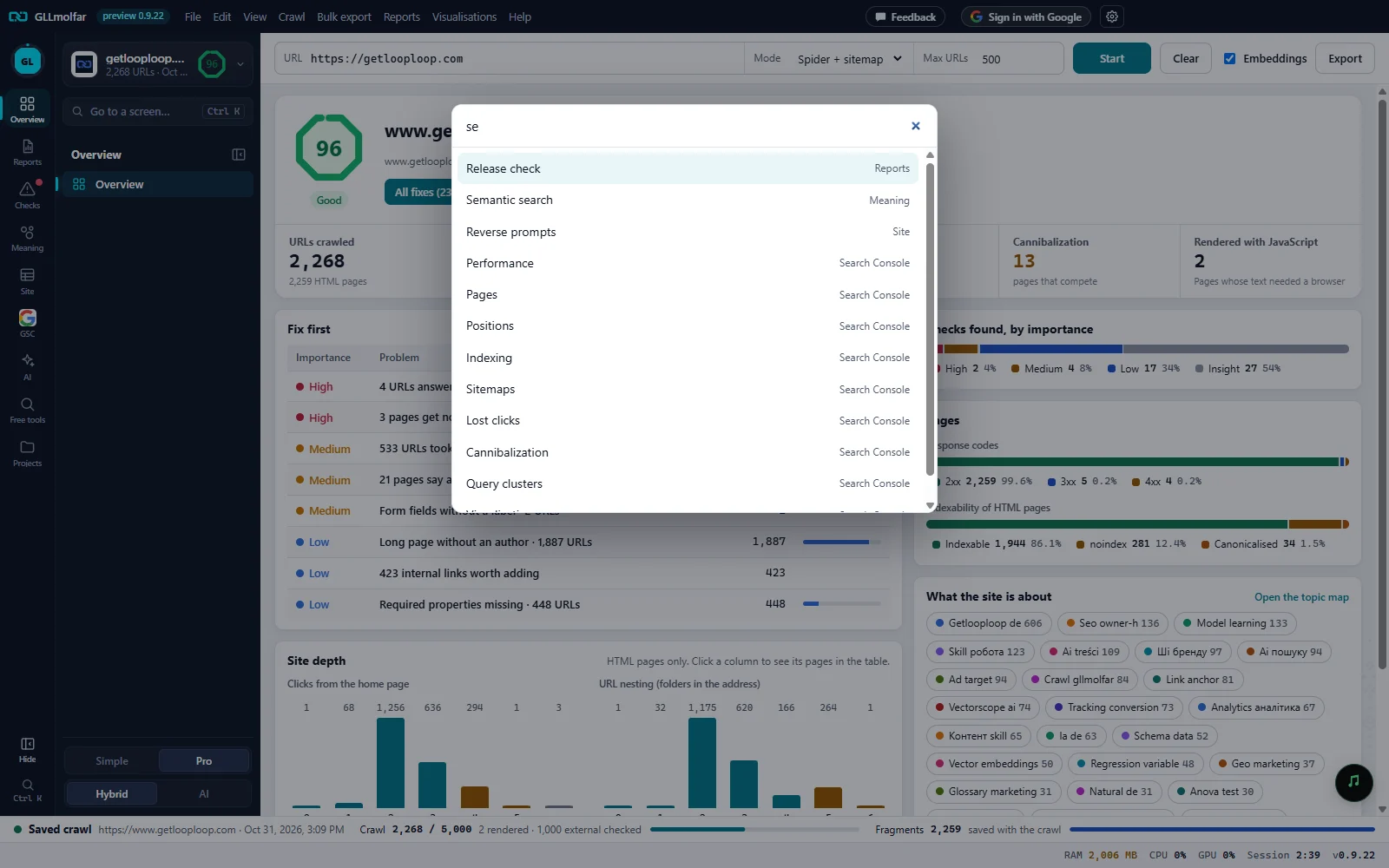
Go to a screen…. The field at the top of the panel. Pressing it opens the palette, as Ctrl K does anywhere in the window.
The field. Go to… a report, a tab, a check. Here it holds se.
Screens. Each screen whose name or section contains the text. The one chosen is highlighted; Enter opens it.
Section. Where the screen lives on the rail: Reports, Meaning, Site, Search Console.
Ctrl K on the strip. The same palette from the foot of the strip.
Nothing by that name
No screen's name or section contains the text.
Simple and Pro, Hybrid and AI
Two switches sit at the foot of the panel. Simple and Pro can also be changed in View and in Settings › General.
| Switch | Choice | What changes |
|---|---|---|
| Simple / Pro | Simple | What to do and why. The panels leave out Issues, Cannibalization, Link opportunities and Semantic search, the page table is called All pages, and the toolbar has no Mode. |
| Simple / Pro | Pro | Every table and filter: every view, the crawl tabs above the table, Compare with, column search, Tree, Columns and the Overview panel. |
| Hybrid / AI | Hybrid | Search engines and AI assistants together. |
| Hybrid / AI | AI | Only AI crawlers, assistants and agents: how they fetch, read and quote the site. Checks are rated for AI readers, and the score is AI readiness. |
Waits, terms and tables
| What | How it looks |
|---|---|
| A wait | One bar, the same on every screen: what is happening, the seconds so far (N s) and, once this kind of wait has been seen on this computer, usually about its usual length. When the work reports how far it is, the bar is that; otherwise it is the share of the usual time, held short of the end until the work is done. |
| A technical term | nosnippet, X-Robots-Tag, hreflang, canonical, embeddings and the like have a dotted underline. Hovering or focusing one shows a sentence that explains it and More in the GetLoopLoop glossary. Settings › General switches it off: Explain technical terms (nosnippet, X-Robots-Tag…) on hover. |
| A table on a narrow window | No column is hidden and nothing scrolls sideways. First the text wraps and an address shrinks to one line with … (the full address is its tooltip); if that is not enough, each row becomes a small card with every cell under its column's name. The page table in Internal keeps its own scrolling. |
The status bar
| Part | What it shows |
|---|---|
| State | A coloured dot and the state, with the site and date for a saved crawl, or a message about the crawl. |
| Crawl | URLs crawled out of the crawl's ceiling, then what is in the queue, the speed, pages rendered with JavaScript, pages skipped by scope or met with a CAPTCHA, and external links checked. A bar follows. |
| Fragments | The page sections turned into embeddings, with what is waiting, the speed and the time left; saved with the crawl when they are done. |
| RAM | Memory used by GLLmolfar. The tooltip adds the embedding model's share and the computer's total. |
| CPU | Share of all processor cores used by GLLmolfar. |
| GPU | Load of the app's GPU process. |
| Session | Time since GLLmolfar started. |
| Version | The installed version; the tooltip adds when it was built. |
RAM and CPU turn amber, then red, as they climb.
States and messages
Ready
Nothing is crawling and no crawl is open.
Crawling
A crawl is running. The counter and the queue move.
Paused
The queue is kept; Resume continues it.
Crawl complete · working on the fragments
The pages are in; embeddings are still being made.
Saved crawl
A saved crawl is open, with its site and date.
Stopped
Stopped by hand. The pages crawled so far are kept.
Crawl failed
The crawl could not go on. The message beside it says why.
AI mode: checks are rated for AI readers, the score is AI readiness.
After switching to AI.
Hybrid mode: search engines and AI together.
After switching to Hybrid.