

Free tools
Describes GLLmolfar 0.9.22current release 0.9.23 · checked 1 Nov 2026
The five free GetLoopLoop tools, inside the app. Each one is the tool alone from getlooploop.com — its field, its button and its reading — with a line above it about the app's allowance and a button to open the full page in the browser.
- Where
- Free tools in the rail
- Mode
- Simple and Pro
- Built from
- The tools on getlooploop.com, not the open crawl
- Changes
- Each time a tool is run
The section
Free tools on the strip opens a panel with the five tools. Pressing one loads it in the view, with the app's wait bar (Opening the tool) until the page is in. The tool speaks the interface language when the site has it — English, Ukrainian or Spanish — and English otherwise.
| Tool | What it reads |
|---|---|
| Vectorscope | Paste a public URL to see its readable passages, semantic groups and the content that falls outside the retrieval cap. |
| Voicescope | Start with one keyword and explore the questions a person may ask an AI assistant across real-life contexts. |
| Brandscope | Ask three AI assistants the buyer questions around a brand, then compare their answers with the brand's own page. |
| Reviewscope | Ask three AI assistants what reviews say about a brand — first without naming a platform, then naming each one — and see which ratings they state without a source. |
| PatternScope | Paste a page to see the stock phrases, repeated sentence shapes and unchecked claims a reader reacts to. Not an AI detector. |
The line above each tool
| Part | What it says or does |
|---|---|
| Name | The tool open now. |
| Allowance note | Runs made in the app are counted on GetLoopLoop's server, on a counter of the app's own, apart from the website's. Signed out: Without signing in the app has the website's allowance on a counter of its own; signing in counts by your account and its plan. Signed in: Runs here count against your account's allowance in the app, apart from the website's; the tool shows what is left. |
| Sign in with Google | Shown while signed out. After signing in, runs count by the account and its plan. |
| Open in the browser | Opens the tool's full page on getlooploop.com, with its explanations, in the browser. |
Vectorscope
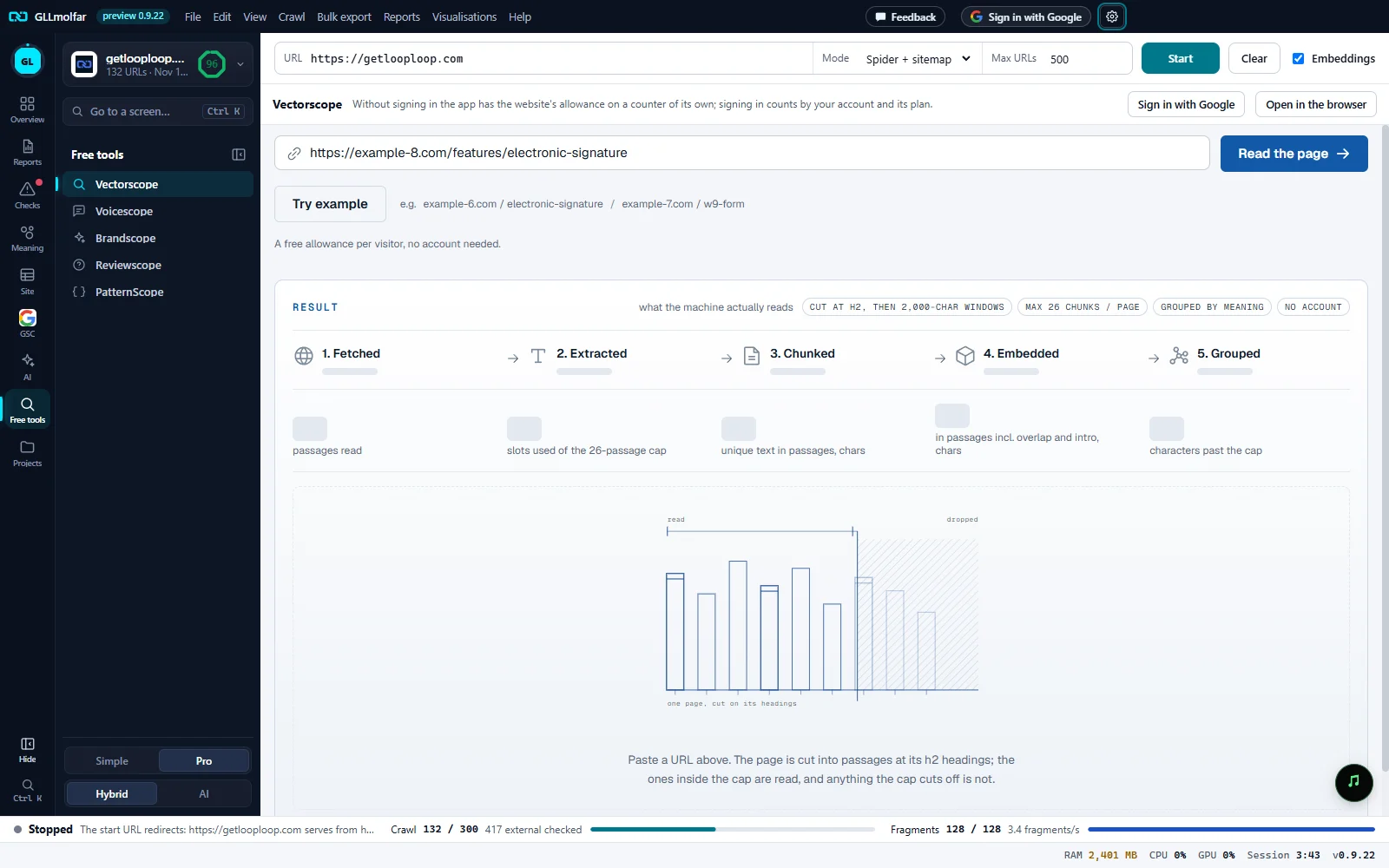
Head. Vectorscope and the allowance note.
Sign in, browser. Sign in with Google and Open in the browser.
The page. A public URL, and Read the page. Try example fills in an example address (replaced in this picture).
Result. How a retriever reads the page, step by step: 1. Fetched, 2. Extracted, 3. Chunked, 4. Embedded, 5. Grouped, with passages read, slots used of the passage cap, unique text, and characters past the cap.
Before a reading. A drawing of one page cut on its headings: the passages inside the cap are read, the ones past it are dropped.
Voicescope
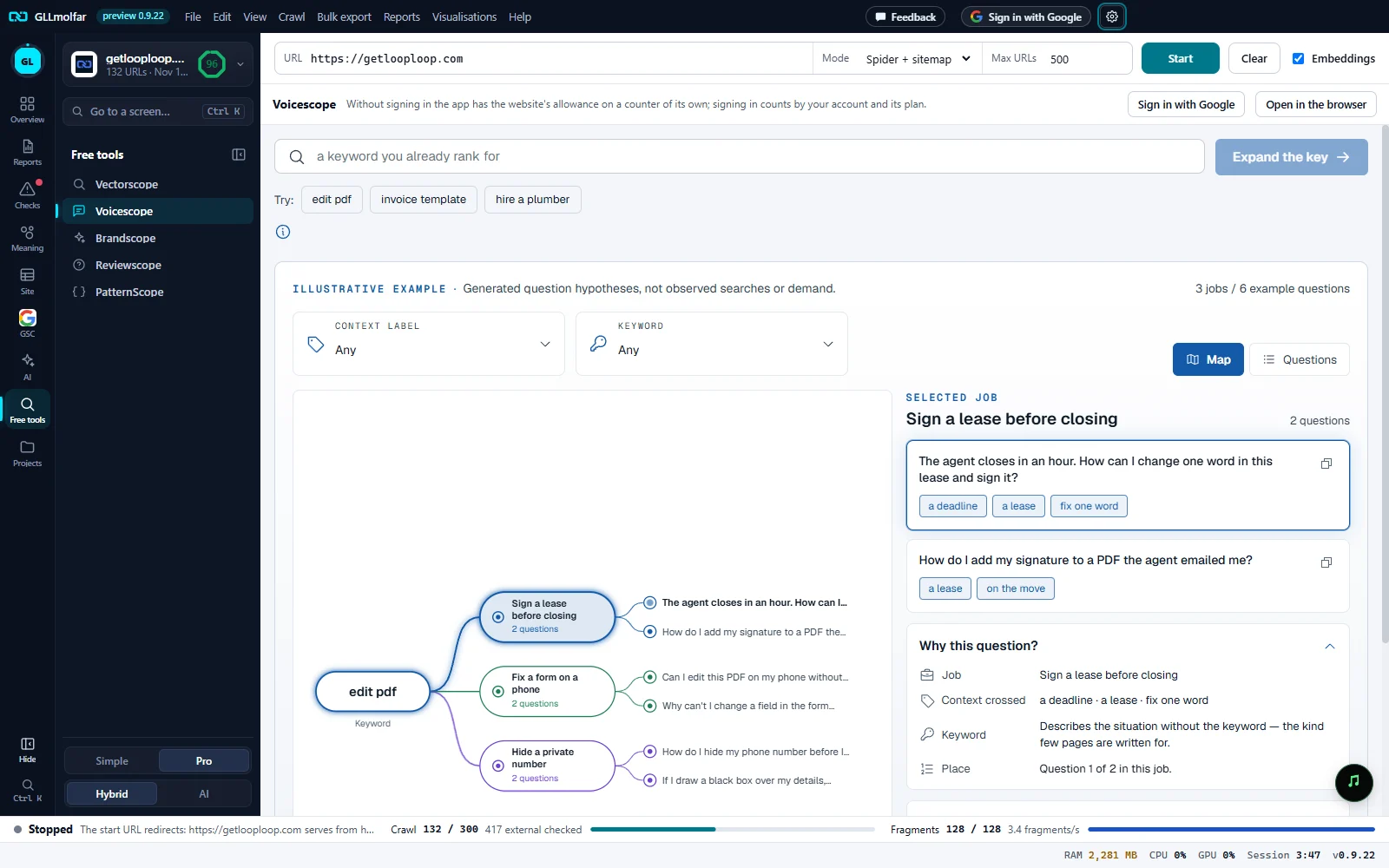
Keyword. a keyword you already rank for, and Expand the key. Try: offers a few keywords to start from.
Illustrative example. Generated question hypotheses, not observed searches or demand. Filters by context label and keyword, and Map or Questions.
Map. The keyword in the middle, the jobs a person is doing around it, and the questions each job asks.
Selected job. The questions of the job picked on the map, with the contexts each one crosses.
Why this question?. The job, the contexts crossed, how the question stands to the keyword, and its place in the job.
Brandscope
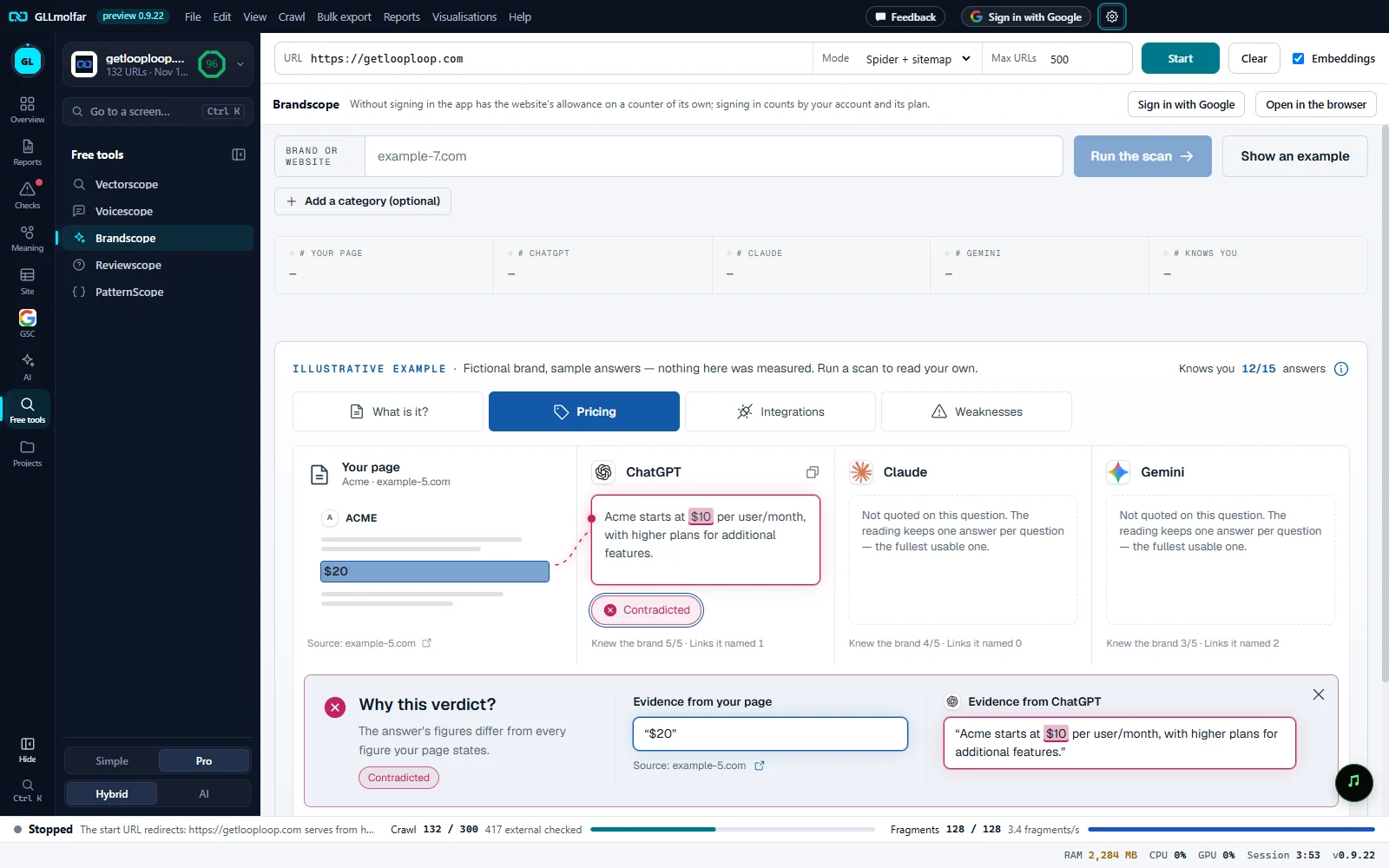
Brand. Brand or website, Add a category (optional), Run the scan, and Show an example.
Counts. Your page, ChatGPT, Claude, Gemini and Knows you: dashes until a scan has run.
Illustrative example. Fictional brand, sample answers — nothing here was measured. Run a scan to read your own.
Questions. What is it?, Pricing, Integrations, Weaknesses: the buyer question whose answers are shown, beside what the brand's own page says.
Why this verdict?. The verdict on one answer, here Contradicted, with the evidence from the brand's page and from the assistant's answer side by side.
Reviewscope
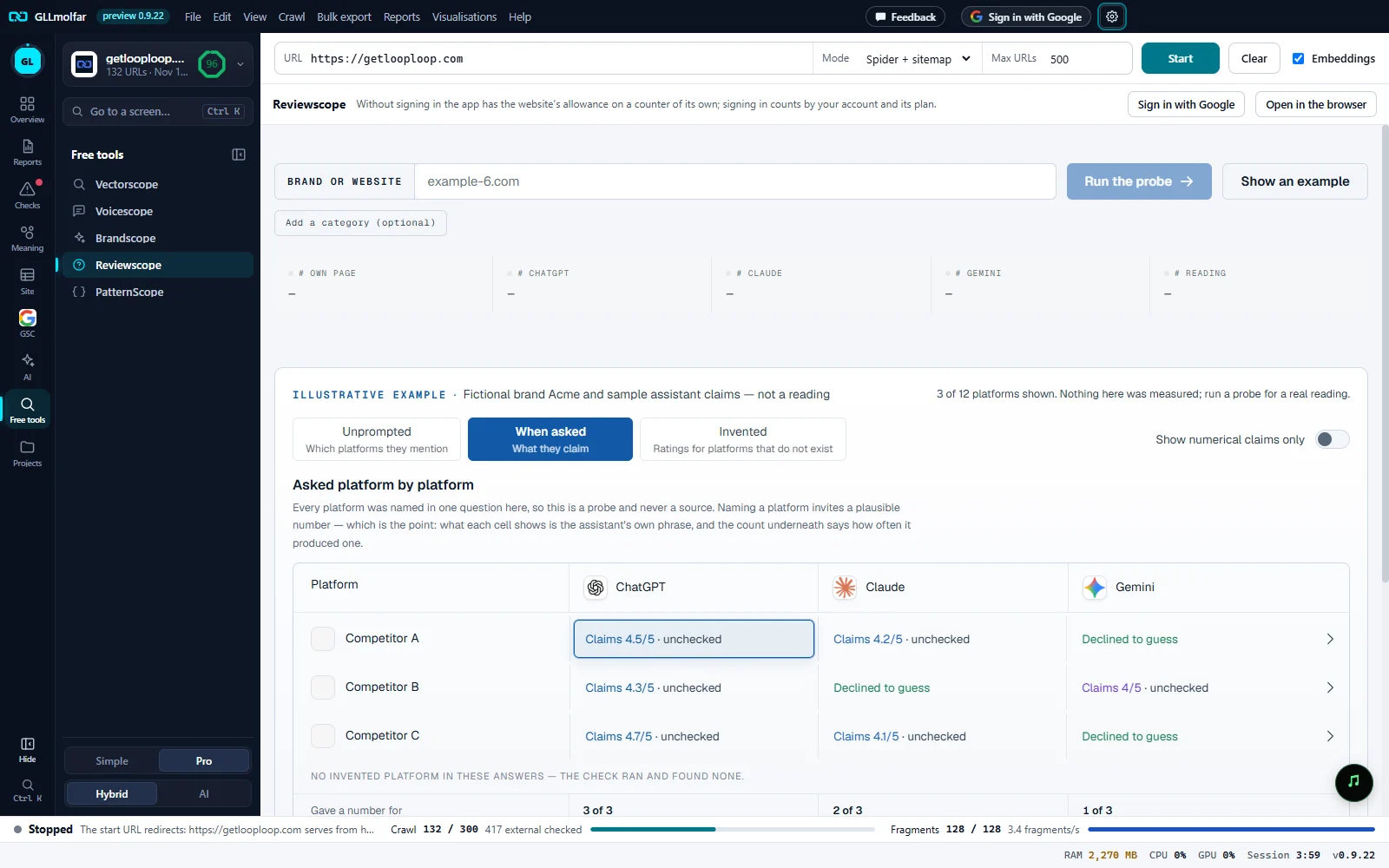
Brand. Brand or website, Add a category (optional), Run the probe, and Show an example.
Counts. Own page, ChatGPT, Claude, Gemini and Reading: dashes until a probe has run.
Illustrative example. Fictional brand Acme and sample assistant claims — not a reading.
Three readings. Unprompted: which platforms they mention. When asked: what they claim. Invented: ratings for platforms that do not exist. Show numerical claims only narrows the claims.
Platform by platform. Each platform against each assistant: the rating it claims, unchecked, or Declined to guess. The platforms' names are replaced in this picture.
PatternScope
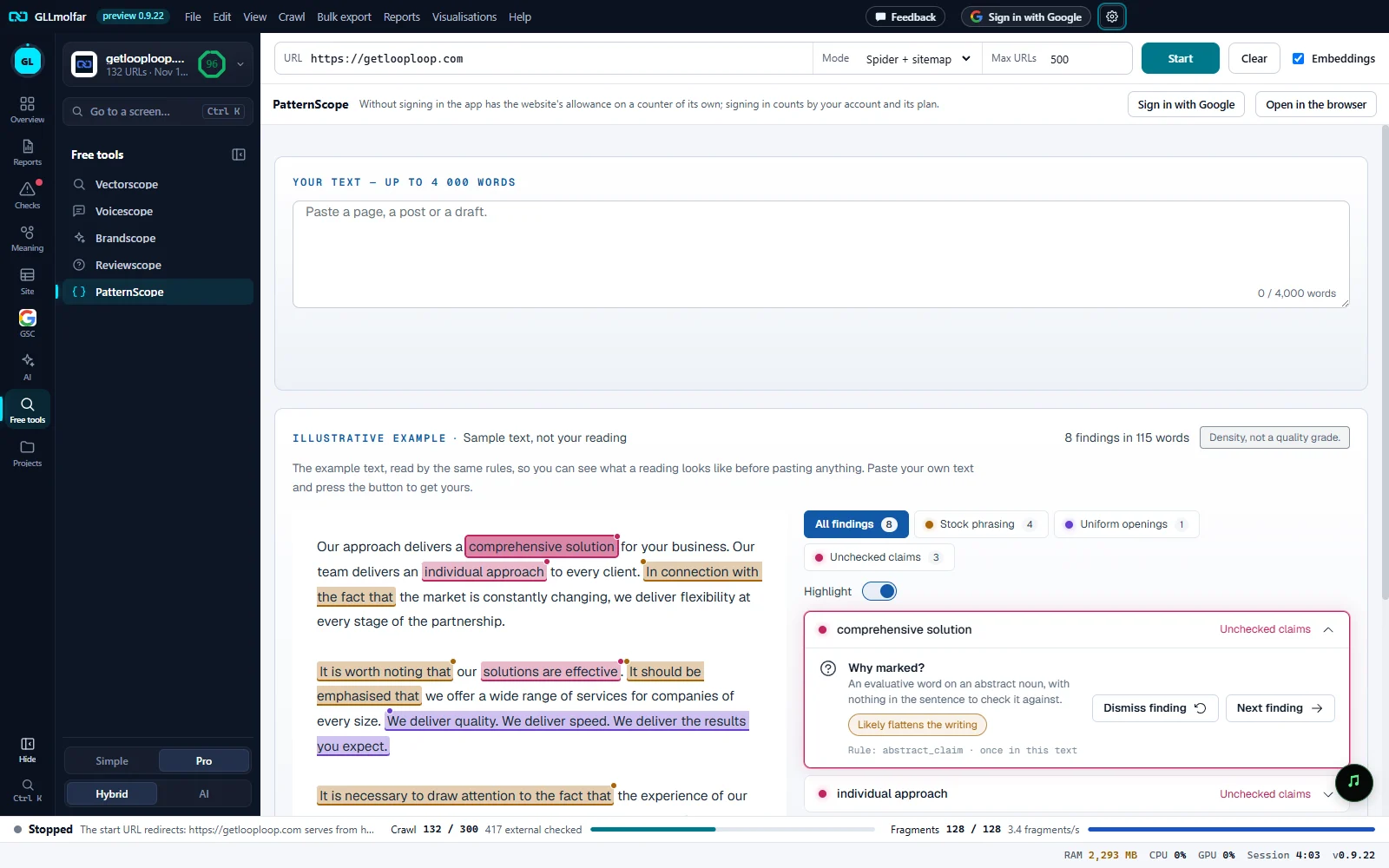
Your text. Paste a page, a post or a draft. The count of words used sits in the corner of the field.
Illustrative example. Sample text, not your reading, with the number of findings and Density, not a quality grade.
Marked text. Each finding highlighted in the text, in its kind's colour.
Kinds. All findings, Stock phrasing, Uniform openings and Unchecked claims, each with its count; Highlight turns the marks off and on.
Why marked?. One finding explained, with its rule, Dismiss finding and Next finding.
States and messages
Opening the tool
The wait bar, until the tool's page is in.
Without signing in the app has the website's allowance on a counter of its own; signing in counts by your account and its plan.
The app's own counter, apart from the website's. Sign in with Google sits beside it.
Runs here count against your account's allowance in the app, apart from the website's; the tool shows what is left.
Runs count by the account and its plan.